How to Connect Xbox Series X, Xbox Series S Controller With Other Devices
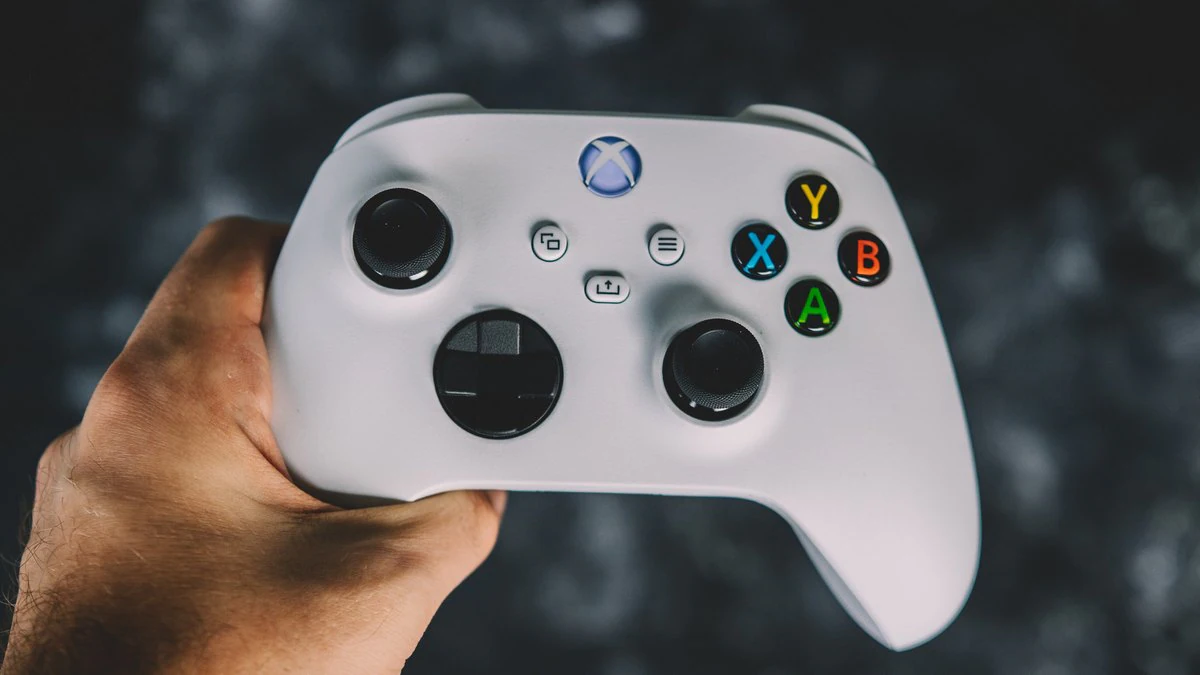
Xbox Series X and Xbox Series S was launched in November last year and the new console comes with a new controller as well. The Xbox Series S/ X controller not only works with the current generation of Microsoft consoles, but also with the previous generation, among other devices. The new controller is more of an iterative upgrade over the previous generation controller but comes with Bluetooth functionality that allows it to be connected with various devices.
If you wish to use your Xbox Series X / Xbox Series S controller with your computer or mobile or other devices, you can do so by either using a USB Type-C cable, or by using a Bluetooth connection. You will need a USB Type-A to Type-C adapter if you want to use a wired connection on Android or laptops that do not have standard USB Type-A ports.
How to connect Xbox Series X, Xbox Series S controller with Windows PC
-
To put your Xbox Series S/ X controller in pairing mode, press and hold the pair button on the top of your controller till the Xbox logo starts flashing. This indicates your controller is in pairing mode.
If your Windows PC or laptop has Bluetooth turned on, you should see a notification pop up at the bottom right that says ‘New Bluetooth game controller found’ with a Connect and Dismiss option. Select Connect.
Your controller should be paired with your Windows PC and the flashing Xbox logo should now be stable.
To pair it manually, head to Settings by clicking on the Windows logo on the taskbar or pressing the Windows key on your keyboard.
In the Bluetooth & other devices section, click on Add Bluetooth or other device.