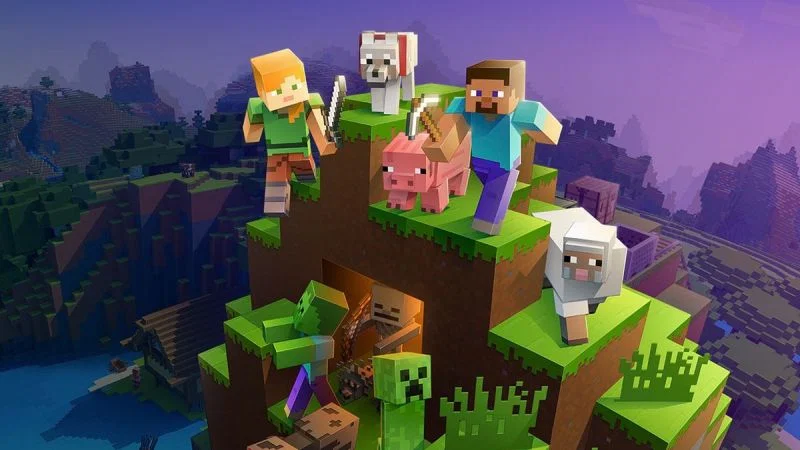
With the purchase of Mojang and their hit sandbox game Minecraft, Microsoft made a big move. The tech company is one of the biggest and has added one of the most popular games in history to its catalog. In doing so, it became linked with Xbox and so now, Mojang accounts are linked to Microsoft accounts.
Players have to migrate their accounts to Microsoft before they become inactive and require players to create new Microsoft accounts, which is less than ideal. Here’s how to migrate the account.
Migrating a Minecraft account to Microsoft
According to Mojang,
“Migrating from Mojang to Microsoft accounts is mandatory. If you don’t make the move, in several months you won’t be able to log in anymore – which means you won’t be able to play either. … You’ll receive a cool reward once you’ve logged in with your Microsoft account: a special cape!”
This means that all players will have to join Microsoft in order to continue playing. Regardless of the platform, whether it’s an iPhone, a Nintendo Switch or a PlayStation 5, all players will have Microsoft accounts.
Players can follow these steps to migrate their account.
- Log into Minecraft account.
- Find the “It’s Your Turn To Move” prompt.
- Click “Move my Account”.
- Verify account with a code sent to the email attached to the Mojang account.
- Enter the code and click “Submit and Start Migration”.
- A new email and password will be needed. A school or work email will not work.
- Existing Microsoft accounts can be used here by clicking “Existing Microsoft Account” instead of creating a new one.
- Confirm date of birth and country.
- Create a gamertag and select a profile picture.
- The final screen will have a “Let’s Move” button that needs to be clicked.
After these steps are completed, Minecraft players will have officially migrated their Mojang accounts to Microsoft and will be able to play and receive the free cape.
For more Minecraft content, check out our Facebook page!
Like and follow Sportskeeda Minecraft Facebook page for more news and info!