How to Transfer Contacts From an iPhone to an Android Phone
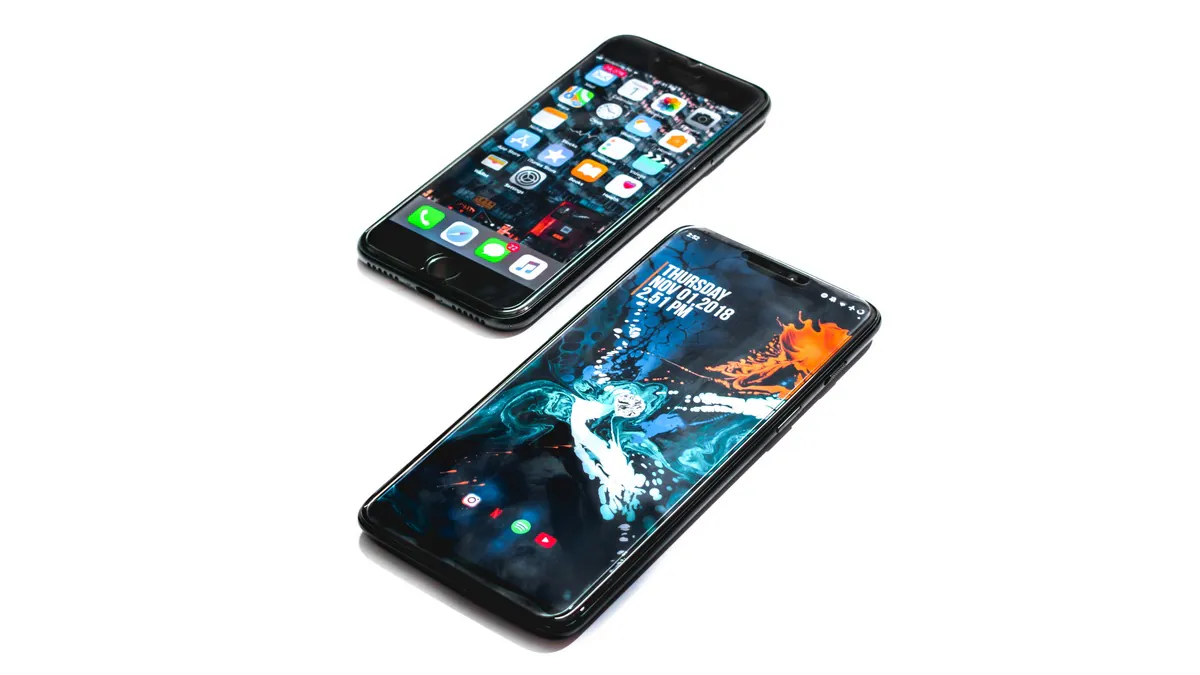
A lot of users make the switch between iOS and Android, and vice versa. Apple and Google’s mobile operating systems respectively have differences setting them apart in terms of functionality and usability. When it comes to transferring data or contacts, it’s much easier to do so when moving from one device to another in the same ecosystem. However, if you are moving from iOS to Android and want to transfer your contacts, here’s how you can do so.
There are a few ways in which you can transfer your contacts from iOS to Android. You can use Google Drive, iCloud, or Gmail. The first, and possibly best way to achieve a complete transfer of your iPhone’s Contacts, Calendar Events, Photos and Videos, onto your Android phone, is via Google drive, as described on Google’s Switch to Android site.
How to transfer contacts from iOS to Android using Google Drive
-
Download Google Drive on your iOS device.
Log in with your Google account.
Open by backup wizard by tapping on the hamburger menu and heading to Settings.
Tap on Backup and you should see Contacts, Calendar events, and Photos & Videos.
If you wish to back up everything, tap on Start Backup. Or, you can tap on the individual options and turn off the toggle.