Contact UsDMCA policyAbout UsPrivacy PolicyTerms of UseDisclaimerCookie Policy
Trending

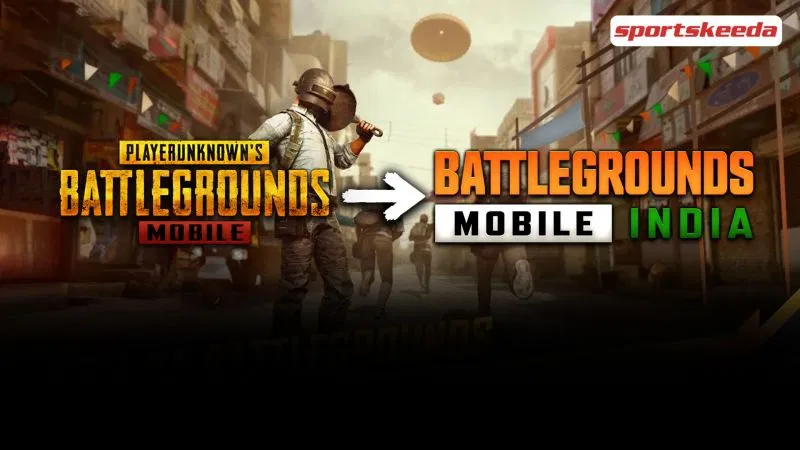
How to transfer older PUBG Mobile account to Battlegrounds Mobile India

How to transfer older PUBG Mobile account to Battlegrounds Mobile India

Players have the option to transfer their PUBG Mobile account to Battlegrounds Mobile India to get all their items back.

Several Indian PUBG Mobile influencers, including Ghatak and GodNixon, hinted earlier hinted that players would be getting all their items back in Battlegrounds Mobile India. this has turned out to be true as early access to the game features an option to transfer data.

Here is a guide on how players can transfer their PUBG Mobile account to Battlegrounds Mobile India.


How to transfer older PUBG Mobile account to Battlegrounds Mobile India

The steps for transferring the account to Battlegrounds Mobile India have been listed below:

Step 1: Once the players have downloaded and installed Battlegrounds Mobile India, they must open the game.

Here is a guide to downloading Battlegrounds Mobile India.

Step 2: They have to log in with one of the available options: Twitter, Facebook, and Play Games.

Create a new character

Step 3: Users will be prompted to create a new character.

Press yes
Press yes

Step 4: After creating one, a dialog box will appear, asking users to confirm whether they reside in India. Press Yes. Next, players must provide their consent for data transfer to Battlegrounds Mobile India.

Provide the consent to transfer the data by pressing
Provide the consent to transfer the data by pressing ‘Yes, please continue

Also read: Dynamo Gaming and other PUBG Mobile influencers receive Battlegrounds Mobile India Early Access


Players have to tap on
Players have to tap on “Yes” to provide to reconfirm the data transfer

Step 5: A dialog box will appear, providing users with details regarding data transfer and prompting users to reconfirm. Press ‘Yes’

Choose the platform to which they have linked to their account.

Step 6: Then, users have to select the social network linked to their PUBG Mobile ID in the prior application. The available ones include Facebook and Twitter.

Tap on
Tap on “Yes” to complete the process

Step 7: Once they log in using either platform, users will be asked to confirm the data transfer, press “YES” to complete the process.

Some of the key details to note are:


Also read: Battlegrounds Mobile India (BGMI) official download link revealed on Google Play Store

Stay connected with us on social media platform for instant update click here to join our Twitter, & Facebook

We are now on Telegram. Click here to join our channel (@TechiUpdate) and stay updated with the latest Technology headlines.

For all the latest Sports News Click Here 

 For the latest news and updates, follow us on Google News. 

Read original article here

Denial of responsibility! TechAzi is an automatic aggregator around the global media. All the content are available free on Internet. We have just arranged it in one platform for educational purpose only. In each content, the hyperlink to the primary source is specified. All trademarks belong to their rightful owners, all materials to their authors. If you are the owner of the content and do not want us to publish your materials on our website, please contact us by email – [email protected]. The content will be deleted within 24 hours.

CategorySports

Related News