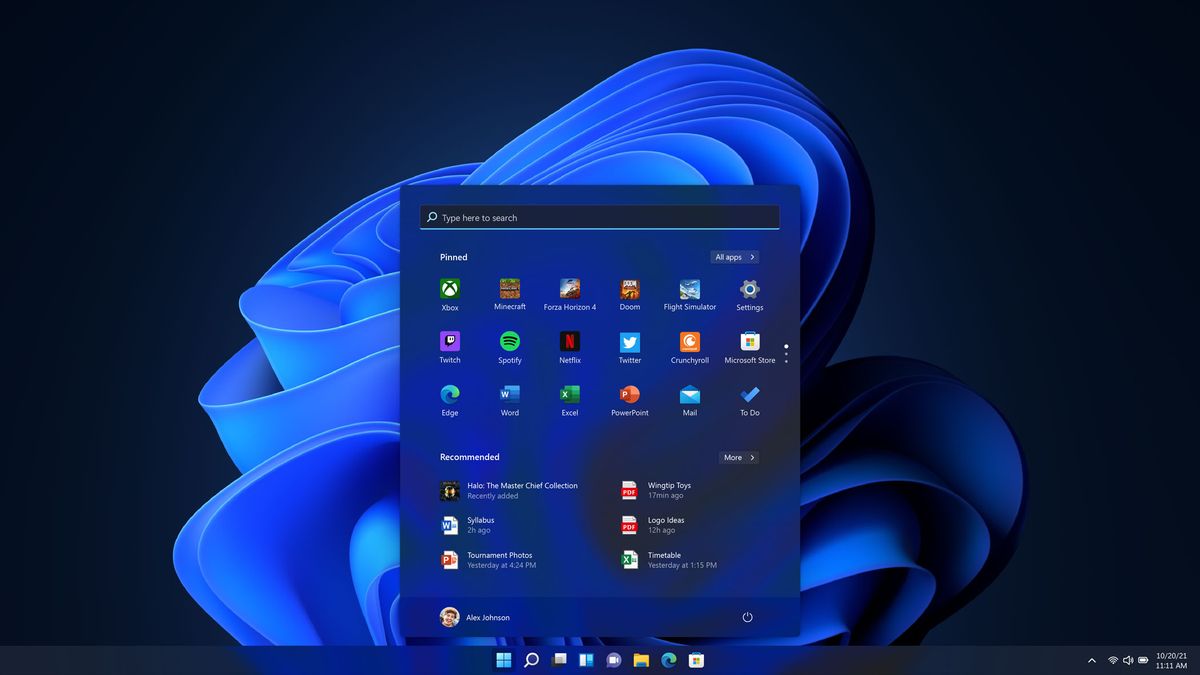
Hidden among the Windows 11 announcement today was a very odd, or at least surprising, system requirement. For Windows 11, all systems will need a TPM 2.0 chip.
What the heck is a TPM chip? TPM is short for Trusted Point Module, and it’s primarily known as a means for security in PCs, mostly dedicated to business notebooks and desktops.
And this will likely lead many to wonder if they have this chip, because it’s not one of the most consumers would ever see or consider when customizing a laptop online, especially if they’re making a gaming system.
Windows 11: What you need
CPU: a 1 GHz or faster dual-core or higher 64-bit processor or System on a Chip Memory: 4 GB RAM Storage: 64 GB TPM: Trusted Platform Module (TPM) version 2.0 Graphics card: DirectX 12 compatible graphics / WDDM 2.x Display: A greater than 9-inch display of 720p or higher
Even if you do have a TPM in your laptop, you might be surprised to know that it’s there. I was personally shocked to find out that the PC I’ve been streaming on Twitch with, the excellent Acer ConceptD 7 Ezel, does have a TPM 2.0 chip and can in fact run Windows 11.
How did I find out? I certainly did not look it up inside my system, though you can if you know how. I chose not to, because Microsoft is offering a way to see if your PC supports Windows 11, and that’s how I wanted to confirm my compatibility.
That said, a quick look at the update’s other major system requirements (a 64-bit dual-core processor of 1 GHz or faster, 4GB of RAM and a 64GB storage device) would let me know that my machine qualified — and so the shorter version would be good enough for me.
That said, as I’ll explain below, there are steps to take if it looks like your system doesn’t have a TPM, it may just need to be enabled.
How to find out if your PC has TPM 2.0 for Windows 11
There are two ways to do this, here’s the faster way to just find out if your PC has a TPM chip.
1. Click Windows + R
(Image credit: Microsoft)
2. Type in ‘tpm.msc’ and click OK or hit Enter.
(Image credit: Microsoft)
3. Look for confirmation or a “Compatible TPM cannot be found” error.
4. If you get the latter, you may still have a TPM chip, but it may need to be enabled. Contact your system’s manufacturer for more details about how to turn it on in the BIOS — we can’t give advice here, as all systems are different.
But what if you want a more complete affirmative message from Microsoft, saying that yes, this system can run Windows 11. Well, Microsoft has a utility for that.
3. Make sure the “Open Windows PC Health Check” box is checked and click Finish.
(Image credit: Microsoft)
4. Click Check now under Windows 11.
(Image credit: Microsoft)
5. The app will confirm or deny your support.
Congrats, now you know if you have a TPM!
If you don’t have one, well, there’s good news and bad news.
There’s a chance you may still have a TPM chip, but it just needs to be enabled. Reach out to the company that made your computer to ask about how your system’s TPM can be enabled in the BIOS, a system that varies so greatly that we can’t give advice here.
You can buy a TPM off Amazon , but you’d need to figure out which TPMs (if any) your system supports, and that’s a whole hassle into an of itself. Plus, installing it requires access to your motherboard, which isn’t exactly easy on most laptops. And installing it isn’t that easy either. Good luck, dear readers!
What is a TPM good for?
If you’re curious, the TPM uses both software and hardware to store and protect important passwords and/or encryption keys. Plus, if a TPM chip detects something wrong in your system, it can run a quarantine mode to try and fix the problem.
It’s basically a line of defense your system has against attacks, and a important part of why Microsoft believes that Windows 11 is super-secure.
Stay connected with us on social media platform for instant update click here to join our Twitter, & Facebook
Denial of responsibility! TechAzi is an automatic aggregator around the global media. All the content are available free on Internet. We have just arranged it in one platform for educational purpose only. In each content, the hyperlink to the primary source is specified. All trademarks belong to their rightful owners, all materials to their authors. If you are the owner of the content and do not want us to publish your materials on our website, please contact us by email – [email protected]. The content will be deleted within 24 hours.