If you’re not sure how to use split screen on iPad, you’re missing out on one of the best multitasking options in Apple’s tablet ecosystem.
The original vision of iPad was a device that became the app you were using. More recently, this pared-back interaction model gained added complexity as user demands increased.
Multitasking is one such example, enabling you to use more than one app at once. The most useful iPad multitasking set-up is the one Apple calls Split View — which is effective, but far from discoverable.
Once you do know how to find it — and how to use it — Split View is a powerful tool for not just viewing two apps at once, but also interacting with them both by, for instance, dragging images from one to another. Let’s dig into how the split screen feature on iPad works.
How to use split screen on iPad: How to set up Split View
(Image credit: Apple)
1. Split View requires you to at least have the second app you’ll pair in the Dock. Drag it there if it’s not present, or open it so it appears in the Dock’s recent items area on the right.
2.Open your first app, which will launch as normal.
3.Drag the Home indicator upward until the Dock is visible and then lift your finger.
4.Tap-hold the second app you want to pair with the first.
5.Drag it toward the iPad display’s left or right edge.
6.If the dragged app presents as a squarish shape, it’s not compatible with Split View. Abandon the drag by returning the app to the Dock.
7.If it presents as a tall, narrow rectangle, drag it to the left or right screen edge, which will ‘nudge’ your first app inward. Let go and you’ll be in Split View, with two apps side-by-side.
How to use split screen on iPad: Manage Split View’s set-up
(Image credit: Apple)
1. By default, Split View gives each app half the display. But you can drag the vertical bar — the app divider — to adjust the ratio, so one app has one quarter of the screen and the other has three quarters.
2. To revert your apps to full screen, drag the app divider to a screen edge. Or to replace an app in Split View, drag a new app from the Dock to its spot.
3. Split View set ups can also be viewed in the App Switcher (drag up from the bottom edge and pause in the centre of the screen). You can drag a new app from the Dock over a Split View pair in the App Switcher. This will then bring that app pair to the front, so you can drop the new app into one of its Split View spots.
How to use split screen on iPad: Try these Split View tips
Once you get to grips with the basics, here are further tips to try:
Drag and drop text, photos and files from one Split View app to another.
Open two instances of the same app side-by-side, to compare documents.
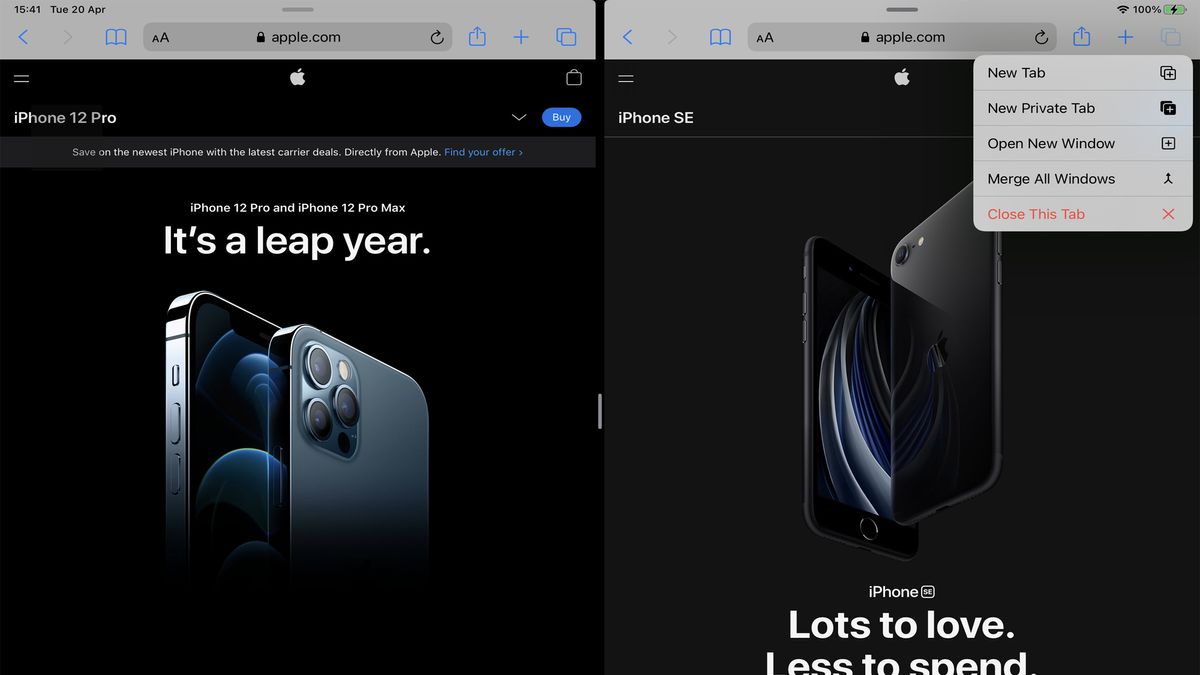
Tap-hold Safari’s tab button and use Open New Windows to quickly get a two-up Safari view. (Merge All Windows reverts to one full-screen window.)
Drop a third app on the app divider and it will sit above Split View in Slide Over mode — handy for apps that only require temporary visibility.
Tap-hold a Split View app’s horizontal tab at the top of the screen and drag downward to switch it to Slide Over view.
Add app folders to the Dock if you find yourself using many of them in Split View.
If you want to disable multitasking, open Settings and flick the switches in Home Screen & Dock > Multitasking.
Can you use Split View on iPhone?
(Image credit: Apple)
If you’ve an iPhone 12 in your mitts and are wondering how to get a two-up app view, like you can on many Android smartphones, we’ve bad news. For now, Split View is only an iPad thing.
However, you can get a glimpse of what might otherwise be with iCab Mobile, a third-party web browser that allows you to carve the display in half and run two browser windows simultaneously. To activate it, tap the Action (share button) menu and select Enable Twin Browser.
It’s a bit cramped. Perhaps Apple’s got this one right after all.
Stay connected with us on social media platform for instant update click here to join our Twitter, & Facebook
Denial of responsibility!TechAzi is an automatic aggregator around the global media. All the content are available free on Internet. We have just arranged it in one platform for educational purpose only. In each content, the hyperlink to the primary source is specified. All trademarks belong to their rightful owners, all materials to their authors. If you are the owner of the content and do not want us to publish your materials on our website, please contact us by email – [email protected]. The content will be deleted within 24 hours.